Mouse Jiggler Detection: How Employers Spot Fake Activity
Can work detect a mouse jiggler? Often, yes, though not every time, and when you look at how mouse jiggler detection really happens it's mostly about patterns that fake input is kind of bad at hiding, so you get movement that's weirdly tidy, activity where no actual work seems to be going on, and sometimes a USB gadget nobody can quite explain plugged into a company laptop. The part nobody writes much about is the bit after, when you've actually found one on somebody's laptop and you've got to figure out what on earth to say to them.
And jigglers don't usually come out of nowhere, either. They tend to pop up on teams where being seen online has quietly started to matter more than what people finish, the kind of place where somebody's green dot gets more attention in the Monday meeting than whatever they shipped last week. So if you manage people or you're in HR, it helps to treat one as a hint about how your team's being measured first, and as somebody bending a rule second.
We'll go through what these things are and why people end up buying them, then how they actually get caught, what the "undetectable" ones conveniently forget to mention, and how you can have the conversation once you've found one without making everything worse.
What a Mouse Jiggler Actually Is
Picture a gadget or an app whose whole job is making it look like someone's at the computer when they've actually wandered off to make a sandwich. It gives the cursor a tiny shove every now and then, so the screen never locks and Teams or Slack never get round to flipping you to "away," and honestly that's about all it does. You'll mostly come across two kinds, which get caught in slightly different ways, so we'll take them one at a time.
Hardware Jigglers
These are the small USB dongles and little physical gadgets, and the dongle sort just plugs in, tells the laptop "hi, I'm a mouse" and then sends tiny movements on a timer, while the physical sort is literally a little platform that rotates or wiggles your real mouse sitting on top of it. Since nothing gets installed, a lot of people assume IT will never see them, though as you'll see further down, that assumption doesn't always hold up.
Software Jigglers
The software kind is an app or a little script that moves the cursor or taps some harmless key at set intervals, and some of them are free downloads, plus some come tucked inside utilities that are meant to keep your screen awake during a presentation. On a managed work laptop, though, just installing one may already break IT policy, before anyone has even started wondering why it's there.
Why Employees Use Them
It's really tempting to see every jiggler as proof someone's slacking off, but if you actually ask around, the reasons tend to be a lot more boring than that, and you'll want to hear them before you decide anything.
- Status pressure. Teams and Slack will flip someone to "away" after a while without any input, and if the people in charge treat that dot as a sign of effort, well, everybody figures out pretty fast that it had better stay green.
- Short idle timeouts. Picture someone reading a forty-page contract or sitting on a long call with their hands off the mouse, because that's real work, and yet a strict timeout will happily log the whole stretch as idle.
- Presence-based metrics. If the weekly report is mostly hours online rather than what got finished, then a cheap gadget that props up the number starts looking kind of reasonable to someone who's worried about their score.
- Long-running tasks. Some folks just don't want the laptop dozing off halfway through a big download, a render or a remote session, and honestly that's a pretty fair reason.
- Genuine disengagement. And yes, sometimes a person has wandered off and is quietly hoping nobody notices, which does happen, and that one calls for a straight conversation.
You've probably noticed that most of those come back to how the work gets measured, so hang on to that thought while we get into the actual signals.
How Mouse Jiggler Detection Works
There isn't one magic sign that proves anything, and the people who get this right tend to look at a few signals side by side, over a few days rather than one odd afternoon, before they draw any conclusions at all.
Movement That Repeats Too Neatly
When a real person moves a mouse it's a mess, honestly, since we speed up and slow down and swoop around and overshoot the button and then wander back to it, but a jiggler just goes in short, even little steps on a steady beat, often back and forth along the very same line. If you've got a tool that logs input timing, that rhythm can kind of jump out at you once you look at an hour of it instead of a minute.
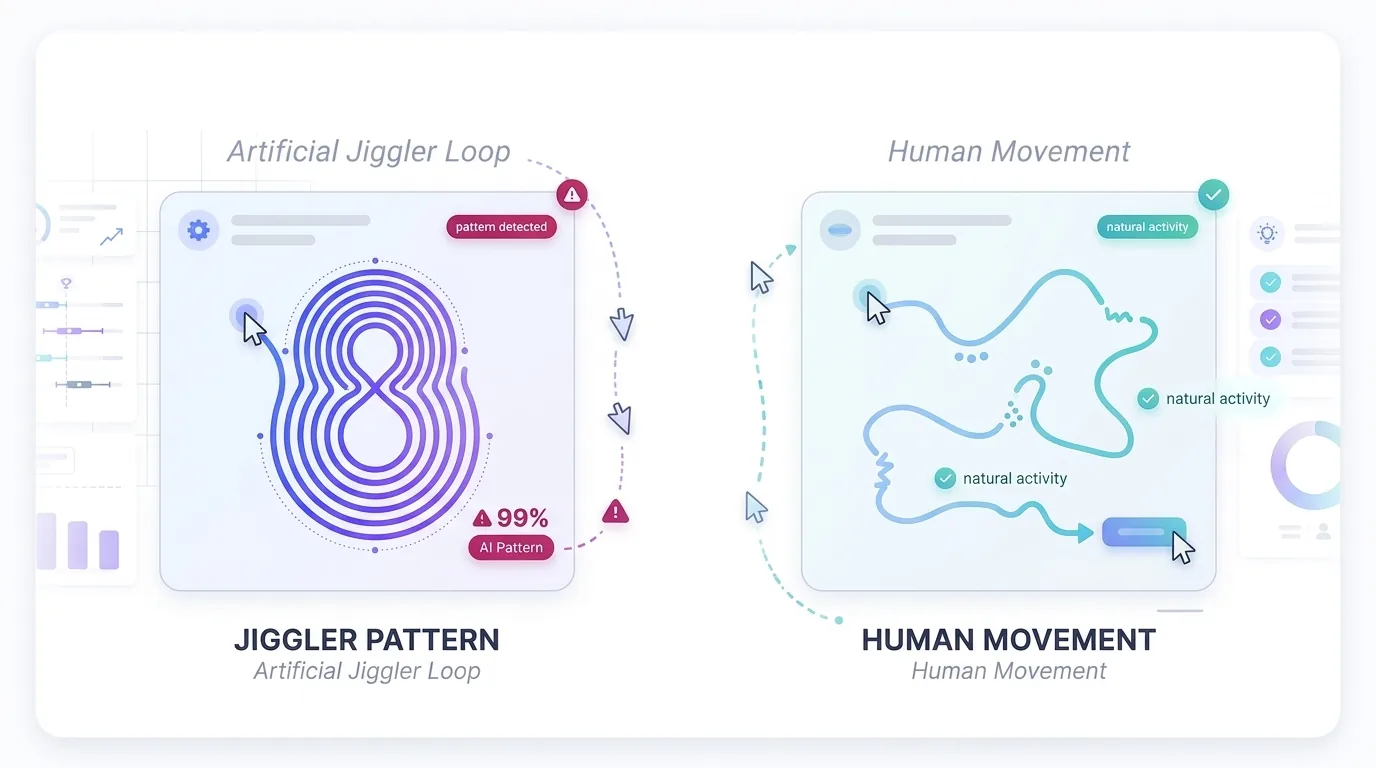
Activity With Nothing Else Changing
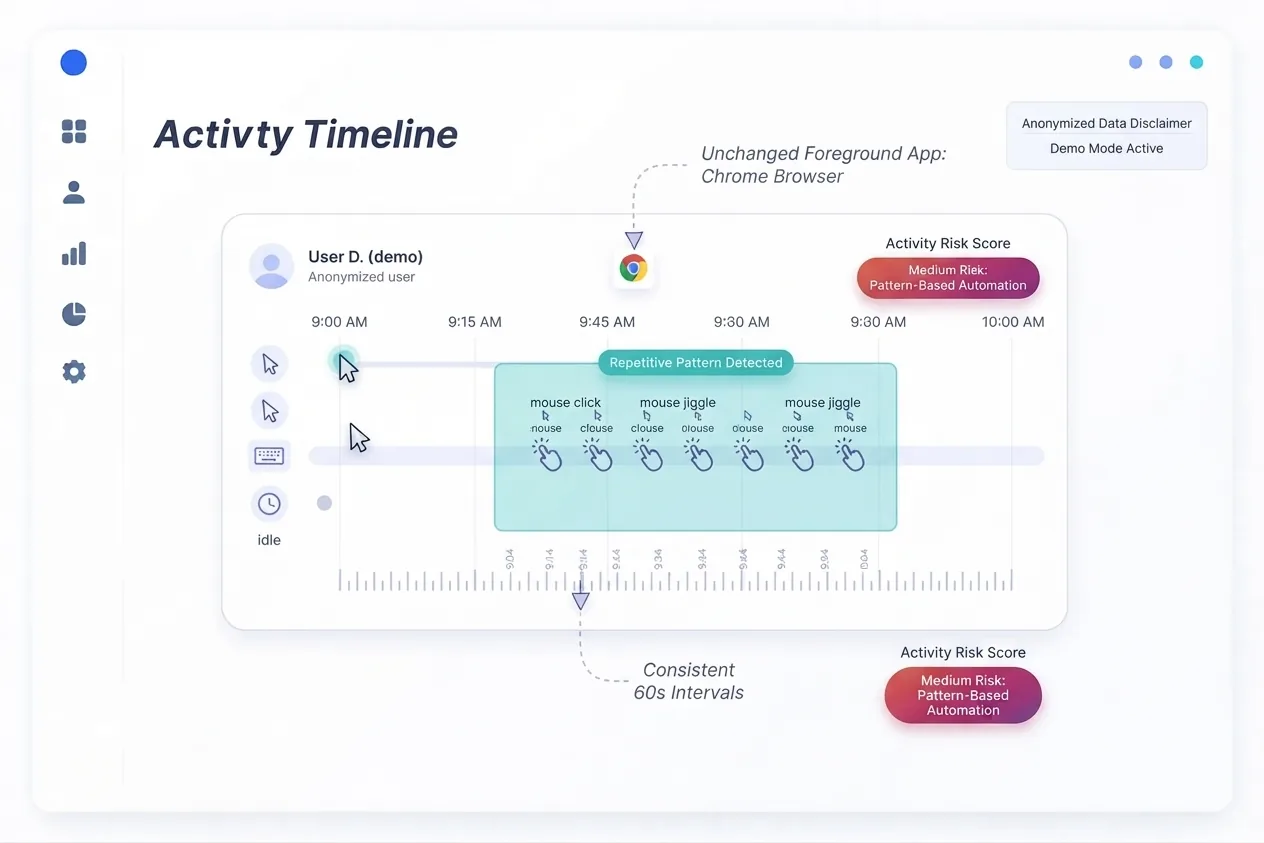
Real work leaves crumbs everywhere, because people hop between apps and open files and flip browser tabs and type stuff, so if your records show the mouse busily moving while the exact same window sits in focus for an hour and not one key gets pressed, something's a bit off there. Tools that track app and website usage next to input will show you that gap without much squinting.
New USB Devices
When a hardware jiggler gets plugged in it usually introduces itself as a mouse or a keyboard, so if IT's endpoint tools keep a log of USB connections, a new input device may pop up in there, and now and then its vendor and product IDs will point straight at a jiggler. Plenty of dongles just say they're a regular old mouse, though, and people plug in their own mice and docking stations all the time, so a new device by itself doesn't prove much of anything. And the mechanical kind that wiggles your real mouse won't show up in those logs at all, which is exactly why you don't lean on this one signal alone.
Activity Time That Doesn't Match Output
This one is the most useful and also the least techy, because if somebody has a whole day of "active" time on record but the tickets, commits, drafts or calls haven't really moved, then the numbers are telling one story and the work is telling a different one. You don't need any special software to catch it, you just have to be looking at what got done as well as at the activity, which sounds obvious, but it gets skipped more often than you'd think.
Detection Signals at a Glance
| Signal | Hardware dongle | Physical mover (shakes a real mouse) | Software jiggler |
|---|---|---|---|
| Repetitive movement rhythm | Yes, usually very regular | Yes, often regular | Yes, usually very regular |
| Input with no app, window or keystroke change | Yes | Yes | Yes |
| New USB input device on the laptop | Sometimes, if IT logs USB connections | No, uses the existing mouse | No |
| Installed app or running process | No | No | Can be visible to IT |
| Blocked by Controlio's built-in jiggler list | No, it's hardware | No, it's hardware | Yes, if the app is on the list |
| Active time that doesn't match output | Yes | Yes | Yes |
So picture how that might look on a real screen. Say you open an activity timeline and there's three hours of "active" time on a Tuesday afternoon, the mouse twitches every 30 seconds like clockwork, no keys get pressed, and one browser tab just sits there in focus the whole time, and while none of that proves anybody meant any harm, it's plenty to justify a calm chat.
How Controlio Handles Mouse Jigglers
If you're running Controlio, a good chunk of this gets handled at the software level, which means it checks the computer for known jiggler apps and stops them from working at all, instead of waiting for somebody to notice a weird pattern in a report three weeks later. It does that with a list of jiggler and auto-clicker apps that's built right into Controlio, and according to Controlio's own write-up on activity falsification, that rule comes with the Advanced plan and the list gets updated regularly.
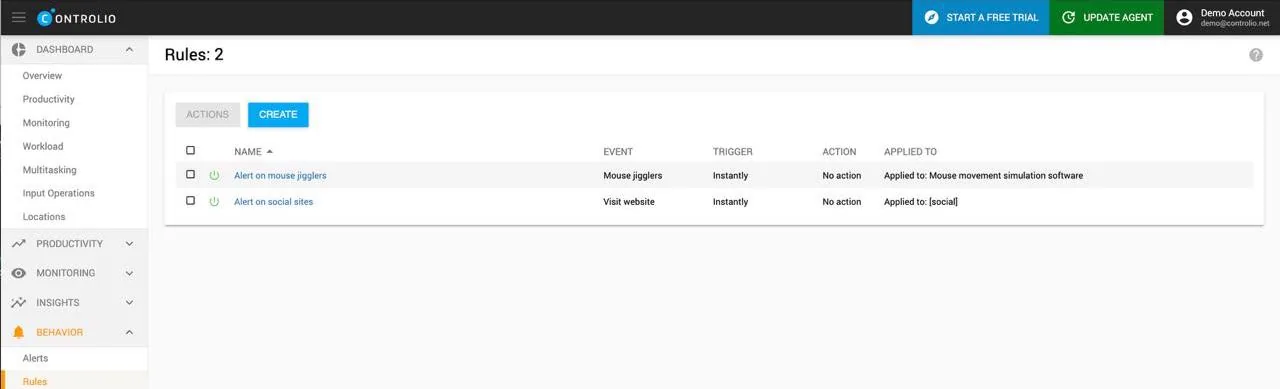
Since it goes after the app itself rather than the movement the app produces, it doesn't much matter whether a jiggler moves the cursor on a neat beat or one of the fancier auto-clickers shuffles its timing around to look human. When one of them starts up on a monitored computer, Controlio can block it automatically and send admins a real-time alert, which beats finding out from a strangely perfect timesheet. And if your company also counts RPA tools as a way around monitoring, you can add those apps to Controlio's behavior rules so they get detected, blocked and flagged the same way.
The one thing to be clear about is that this list covers software, so a USB dongle or a little platform wiggling a real mouse isn't an app and won't be on it, and no list is ever going to cover every tool out there either. Those still show up through the patterns we went through above, and since Controlio records active and idle time along with app and website usage, you can look at all of it together in the activity reports and in the Timeline report, which shows how someone moves between apps over the day.
What "Undetectable" Jigglers Leave Out
Go searching for an undetectable mouse jiggler and you'll find a whole shelf of products promising exactly that, but if you read what they're claiming, it's almost always about dodging one narrow technical check, and the bigger picture just doesn't come up.
Thing is, a jiggler can only fake input, so it isn't going to open the right files or reply to a customer or finish anybody's report, and even one that slips past a particular check perfectly still leaves this gap between what the activity log says and what actually got done, which is usually the first thing anyone notices anyway.
So, do mouse jigglers work? They'll keep a screen awake and a dot green, sure, but they can't make missing work show up, and they've got a way of turning a small trust wobble into a much bigger mess. We're not going to get into ways of dodging detection here, because the question we'd rather you sit with is why someone felt like they needed one in the first place.
You Found a Jiggler: Now What?
Finding one can honestly sting a bit, like someone's been fibbing to you, so try to give yourself a minute before you react, because how that first conversation goes can shape how much trust there is on the whole team for quite a while.
Start With a Private, Curious Conversation
Start with what you actually saw rather than whatever you're assuming, then ask your question and properly listen to what comes back, and having a loose script in your pocket like this one can keep you steady while you do:
- Describe the observation. "I noticed a stretch of activity on Tuesday where the mouse moved every 30 seconds and nothing else changed. Can you help me understand it?"
- Ask about the why. "Was something about our status settings or time tracking getting in your way?"
- Check the workload. "How are you feeling about your current projects? Is anything blocked?"
- Agree on next steps. "Let's remove the device and agree on how we'll look at your work going forward. What would make that fair for you?"
- Follow up. "Let's check in again next week and see how it's going."
Keep your tone as neutral as you can, because what you hear back might be burnout, or fuzzy priorities, or a timeout that kept calling someone's deep focus time idle. Sometimes, though, it turns out the person really has kind of checked out, and that's worth knowing as well, because then it's a performance conversation and you'd take it through your normal process like anything else.
And if you're thinking about disciplinary steps at all, or you're not sure what the rules are where you are when it comes to monitoring and devices, loop HR in before you do anything, since this isn't legal advice and so much depends on your location and what your written policies actually say.
Check Which Metrics Reward Presence Over Output
Once you've had the conversation, it's worth stepping back from the one person and looking at the setup around them, and asking yourself a few honest questions along these lines:
- Do we judge people by status dots? If "away" quietly gets read as "lazy" around here, people are going to keep that dot green any way they can, and that's worth knowing before you blame anyone.
- Are idle timeouts too short? Reading and calls and planning can all look idle from the outside, so you may want to nudge the thresholds until thinking time stops getting punished.
- Do reports lead with hours online? You could flip it around so outcomes come first, things like tasks closed, deadlines met and how good the work actually is.
- Can employees see their own data? When people can see their own numbers they tend to spot problems early, and they're a lot more likely to trust what those numbers say, which is why Controlio has a self-monitoring view where employees can check their own activity.
Activity-based time tracking does its best work when it's helping with planning and keeping workloads balanced, and not so much when it turns into a leaderboard for who stayed online longest. If you'd like the wider view on why and how teams track activity, there's our guide on how to monitor computer activity.
Final Thoughts
So can teams detect a mouse jiggler? A lot of the time, yeah, and it gets much easier if you're watching output and not just activity, though honestly the gadget itself is hardly ever the real issue, it's more of a nudge that the way your team's work gets counted might be due for a rethink. If you sort out the metric and have that honest chat and keep your attention on what's getting finished, people tend to feel the change pretty quickly, and your data ends up cleaner as a bonus. So, what would your reports look like if they rewarded results instead of a green dot?
Try Controlio free and compare active time with real output. No credit card required.